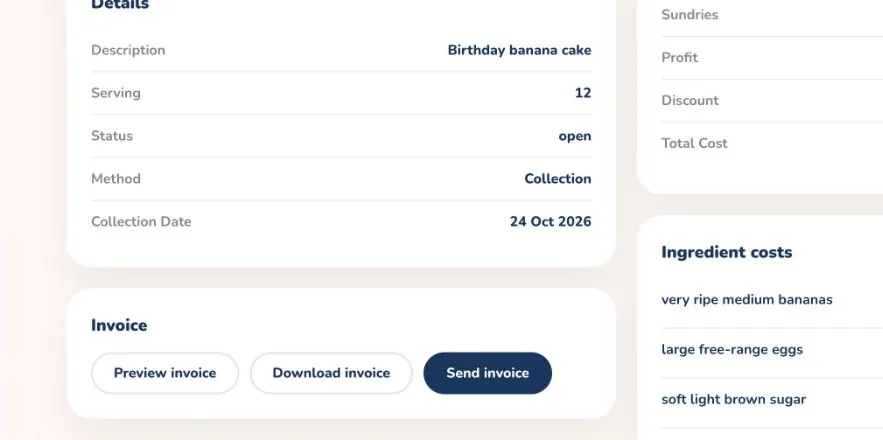
Turn a saved calculation into a professional invoice. Preview it, download a PDF or email it straight to your customer.
On the mobile app
Fill in your business details first. Open the menu, choose Business Management, then Business Details and Invoice Template, so your invoices carry your name, contact details and style.
Open the Calculate tab and tap the calculation you want to invoice.
Use Preview Invoice to check it before it goes out, or Download Invoice to save a copy.
Tap Send Invoice. In Send Invoice to Client, enter the client's email address and edit the message if you want to.
Add any attachments with Add Image or Add File, then tap Send. The invoice and message go straight to your client's email.
Invoicing is part of the business tools, which are available on paid plans.
Save your client's email address in Contacts so you always have it to hand.
On the web
Before your first invoice, open Settings and fill in Business Details. Invoicing needs them.
In Settings, open Invoice Template to choose how your invoices look.
Open Calculate and select the calculation you want to invoice.
In the Invoice section, select Preview invoice to check it, or Download invoice to save a PDF.
Select Send invoice, check the Recipient email, edit the Message if you like and select Send.
A confirmation tells you the invoice was sent and to which address.
Sending invoices is available on the Part-time and Full-time plans. Upgrade in the app if you need it.
Previewing and downloading let you check the figures and keep a copy before you email anything.