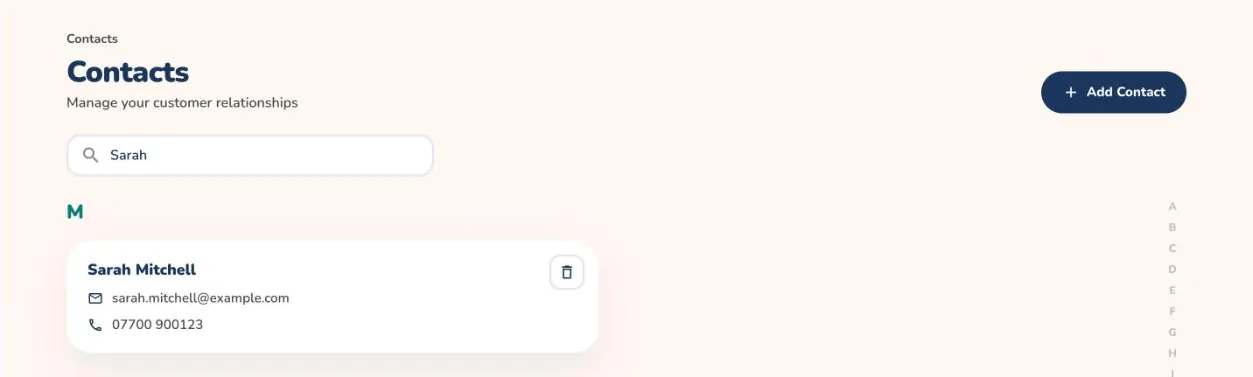
Keep your customers in one place with their email, phone, addresses, allergies and special dates, ready to pick whenever you price a new order.
On the mobile app
Open the Contacts tab. Your contacts are listed from A to Z, with a letter index on the right.
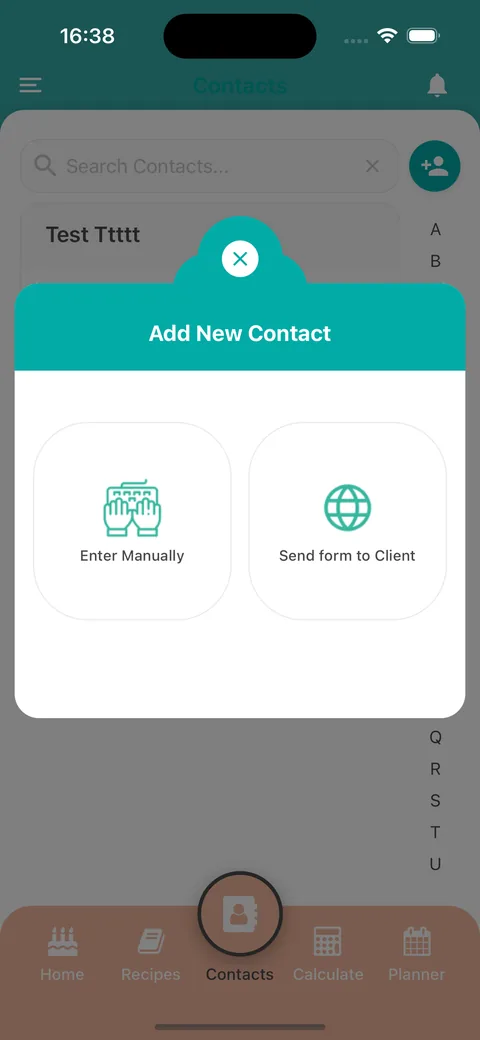
Tap the add contact button next to the search bar. In Add New Contact, choose Enter Manually, or Send form to Client to let your customer fill in their own details.
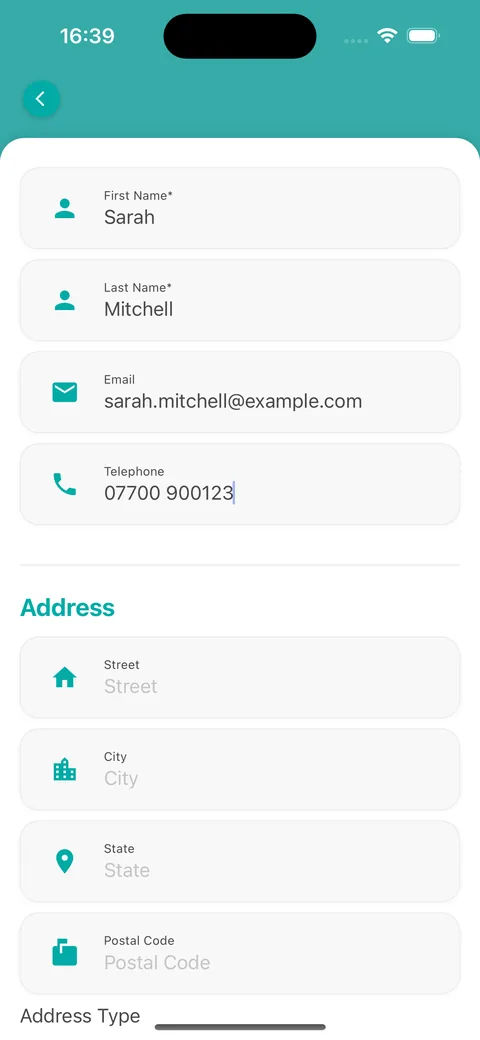
Enter the First Name and Last Name, which are required, then the email, telephone and address.
Scroll down to add special events, allergies, notes and where the customer heard about you, then tap Add Contact.
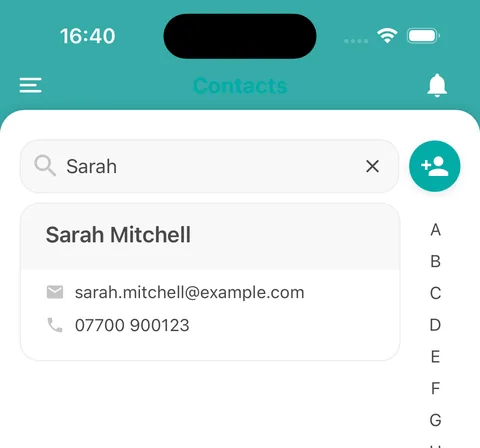
Use Search Contacts... or the letter index to find someone quickly, and tap a contact to see or edit their details.
Recording allergies on a contact means you can check them before you quote or bake.
Choose how to add a contactFill in the detailsSearch your contacts
On the web
Open Contacts from the menu. Contacts are grouped by the first letter of their name, with a letter index at the side.
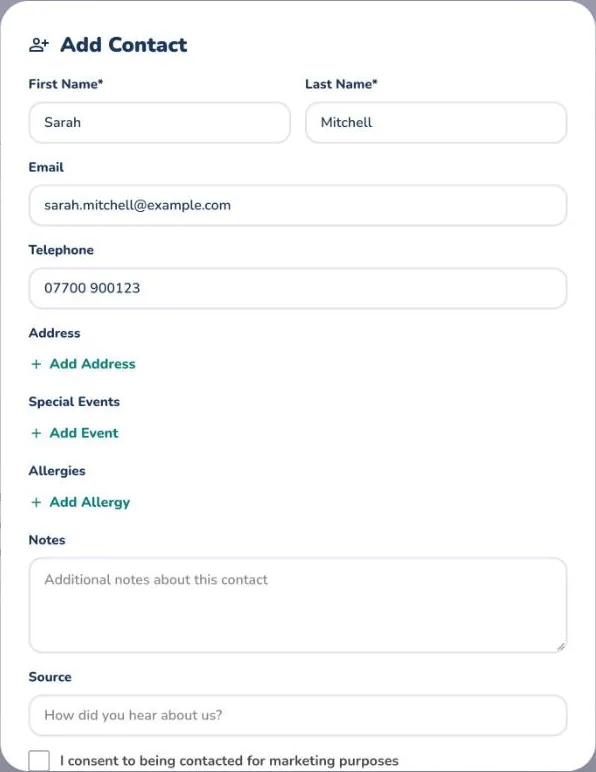
Select Add Contact.
Enter the First Name and Last Name, which are required, plus the email and telephone.
Use Add Address, Add Event and Add Allergy for extra details, and add notes or where the customer heard about you. Then select Save Contact.
Type in the search box to filter the list, and select a contact to see or edit it. Saved contacts can be chosen as the customer in a new calculation.
The bin on a contact card deletes that contact, so check before you use it.