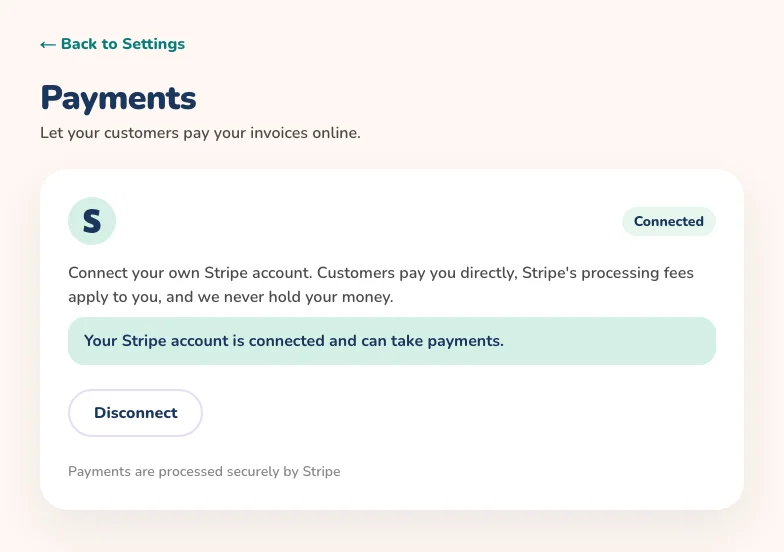
Connect your own Stripe account once, then add a payment link to any invoice so your customer can pay by card the moment they open it. Online payments are part of the Full Time Baker plan and are set up on the web.
On the web
Open Settings from the menu, then choose Payments.
Choose Connect with Stripe. Stripe opens: sign in to your Stripe account, or follow Stripe's steps to create one.
When you are back, Your Stripe account is connected and can take payments. appears. If setup is not finished, choose Finish setting up.
Open a saved calculation and choose to send the invoice by email or text message.
Tick Include a payment link so the customer can pay online.
Send the invoice. The link appears in the email, in the invoice PDF and in the message. Or choose Get payment link to copy it and send it any way you like.
Your customer pays by card on Stripe's secure page. Once it goes through, the invoice shows Paid with the amount and the date.
Customers pay you directly, Stripe's processing fees apply to you, and we never hold your money.
Payment links are optional on each invoice. You can disconnect Stripe at any time from the Payments page, but payment links you already sent will stop working.
A connected Stripe account on the Payments page
Price and scale every bake with confidence
The Glowing Constellation App works out ingredient costs, scales recipes and keeps your baking business organised.