Every recipe you add is kept in your own collection. Give recipes categories such as Cakes, Bread or Celebration so you can find the right one in seconds.
On the mobile app
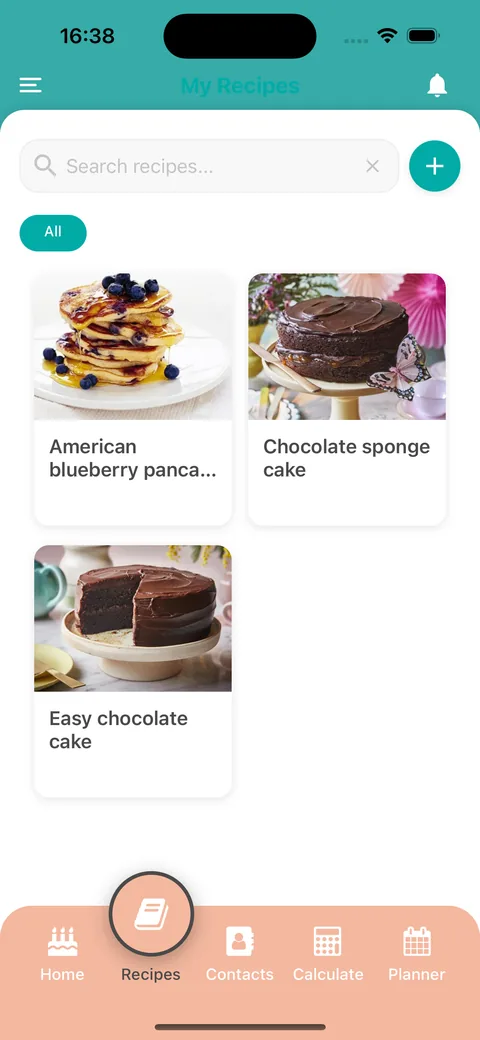
Tap the Recipes tab at the bottom of the screen. Every recipe you have saved appears as a card with its photo and name.
Type in the search bar at the top to find a recipe by name.
Tap a category chip under the search bar, such as All, to show only the recipes in that category.
Tap a recipe to open it. You will see the ingredients, the preparation method and your notes.
To manage your categories, tap the + button next to the search bar and choose Manage Categories. You can create, rename or delete a category there.
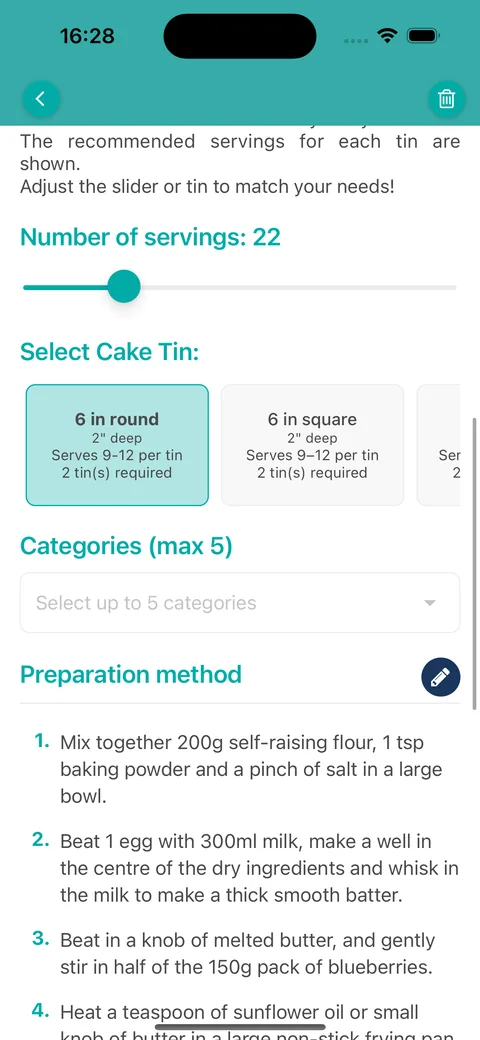
On a recipe, use the Categories field to choose up to five categories for it. Your plan sets how many recipes you can store, and the app tells you when you reach the limit.
Browse and search your recipesChoose categories on a recipe
On the web
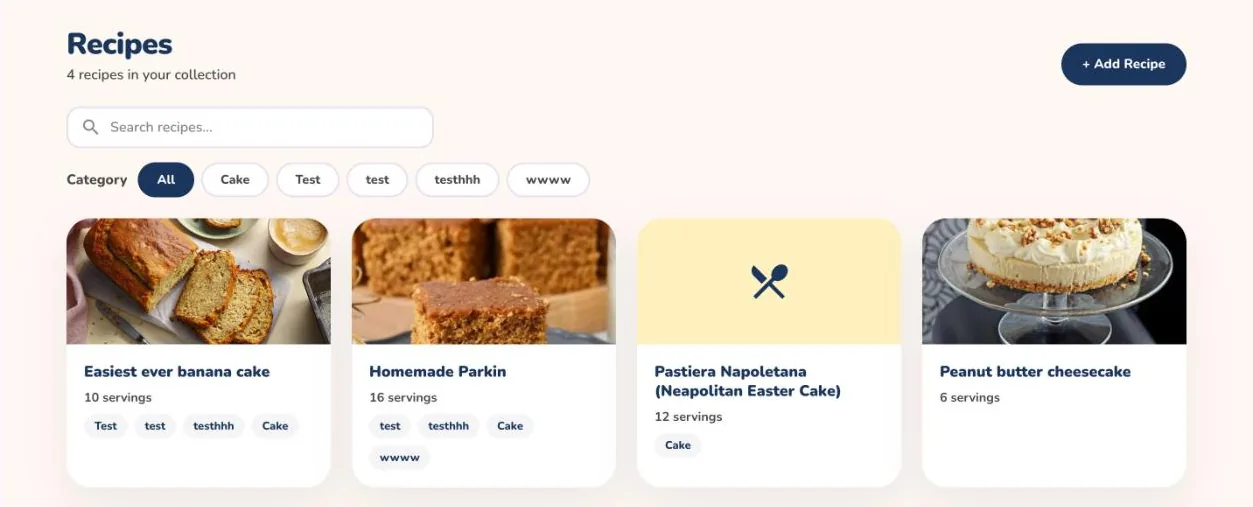
Log in and open Recipes from the menu. Your recipes appear as cards with their photo, number of servings and categories.
Use the Search recipes... box to find a recipe by name.
Select a category chip next to Category to show only the recipes in that category. Select All to see everything again.
Select a recipe to open it. Use Edit to change it or to choose categories for it.
Open Categories from the menu to manage them. Select + Add Category to create one, the pencil to rename it or the bin to delete it.
The Categories page shows how many recipes each category holds, so you can spot groups that need tidying.
Search and filter your recipesManage your categories