How to plan your orders and week
The planner shows your orders and your own commitments on one calendar, so you can see what is coming up and avoid double-booking yourself.
On the mobile app
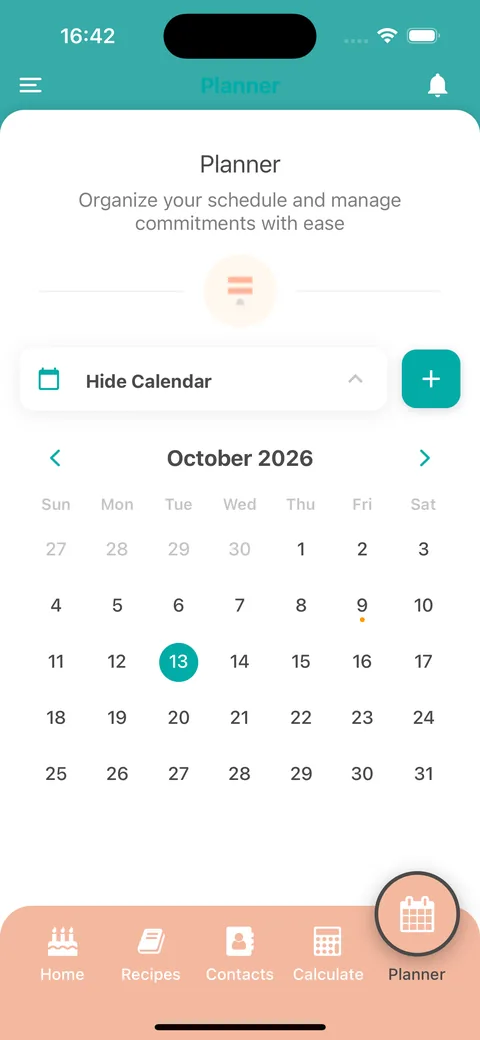
- Open the Planner tab. The calendar shows the current month with today highlighted.
- Tap a date to see what is planned for it. Dates with something planned show a coloured dot.
- Tap Hide Calendar to give the list more room, and Show Calendar to bring it back.
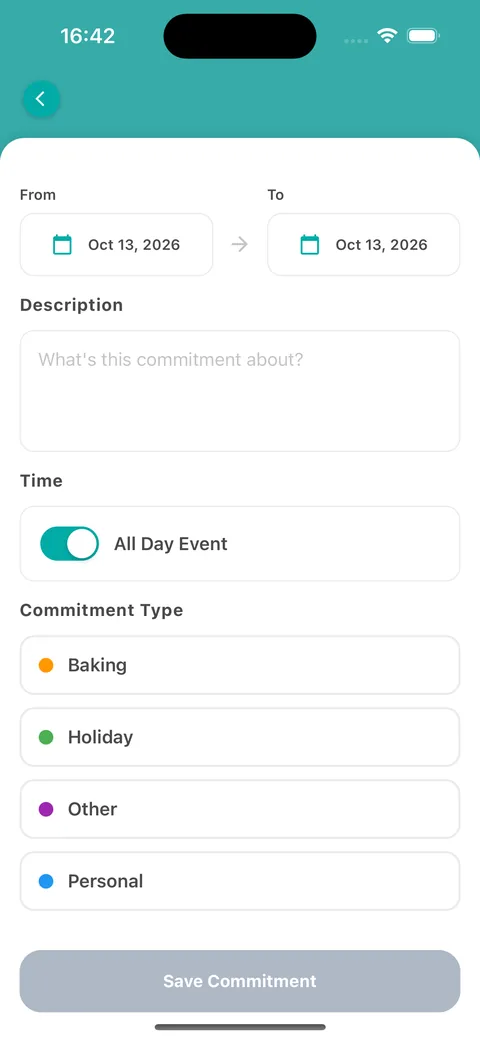
- Tap the + button to add a commitment. Choose the From and To dates, describe it, and switch All Day Event on or off to set times.
- Pick a Commitment Type, such as Baking, Holiday, Other or Personal, then tap Save Commitment.
Orders you save in the calculator appear on their collection or delivery date.
When you set the delivery or collection date on a calculation, a notice appears under it if you already have an order due that day or a commitment in your planner, so you can avoid double-booking. It is only a heads-up: you can still save.
On the web
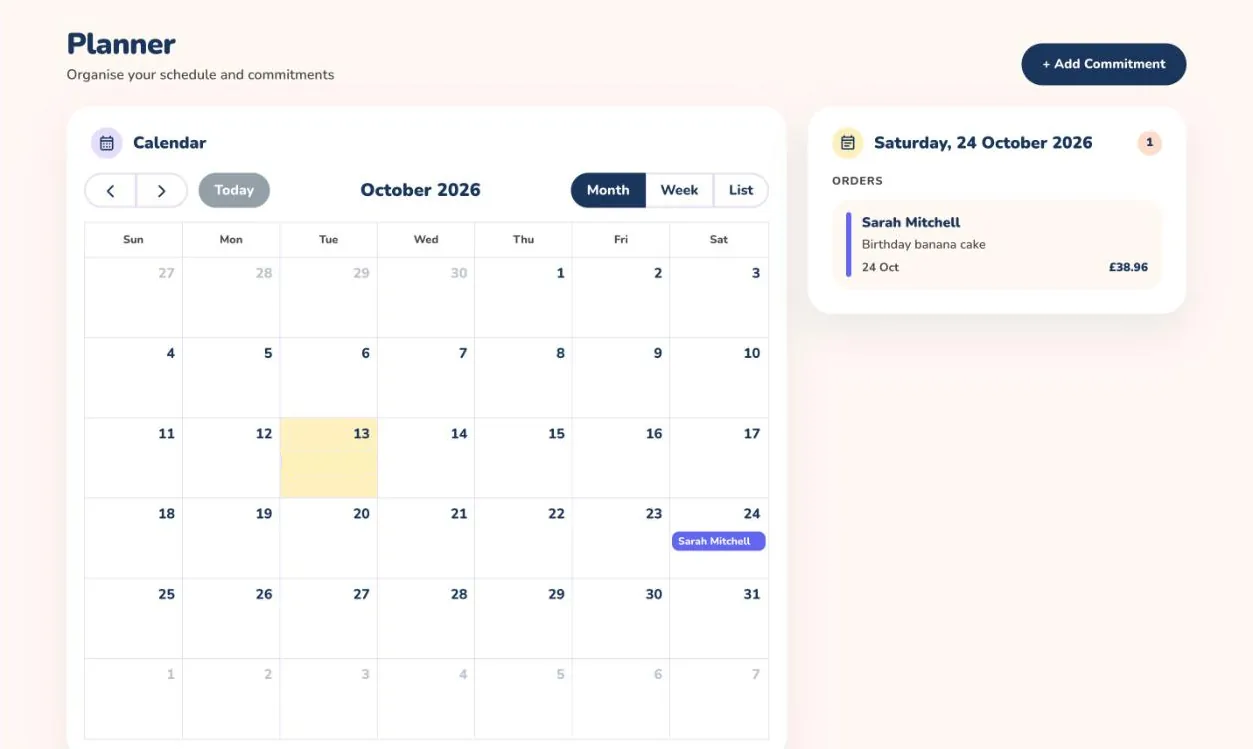
- Open Planner from the menu. The calendar opens on the current month.
- Switch between the Month, Week and List views, and use the arrows or Today to move around.
- Orders from your calculations appear on their collection or delivery date. Select a day to see its orders, with the customer, description and price, in the panel on the right.
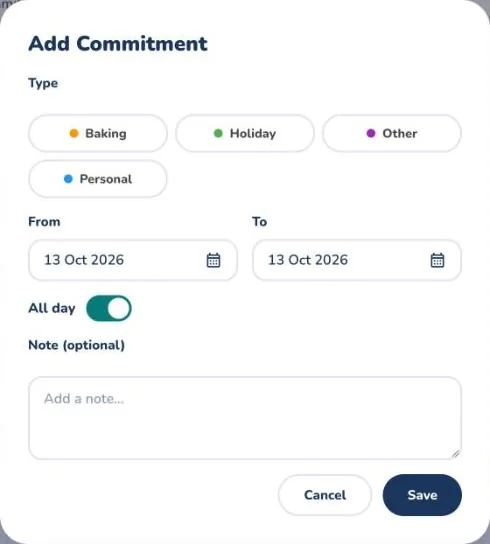
- Select + Add Commitment to block out time of your own.
- Choose a type such as Baking, Holiday, Other or Personal, set the From and To dates, switch All day on or off, add an optional note and select Save.
Commitments and orders sit on the same calendar, so a quick look tells you whether you have room for another order.
When you choose the delivery or collection date on a calculation, a notice appears under it if you already have an order due that day or a commitment in your planner, so you can avoid double-booking. It is only a heads-up: you can still save.