Add your contact form to your own website so visitors can send you their details without you having to message them a link. Every submission is added to your contacts. You set it up once, from the web. The website contact form is part of the Part Time Baker and Full Time Baker plans.
On the web
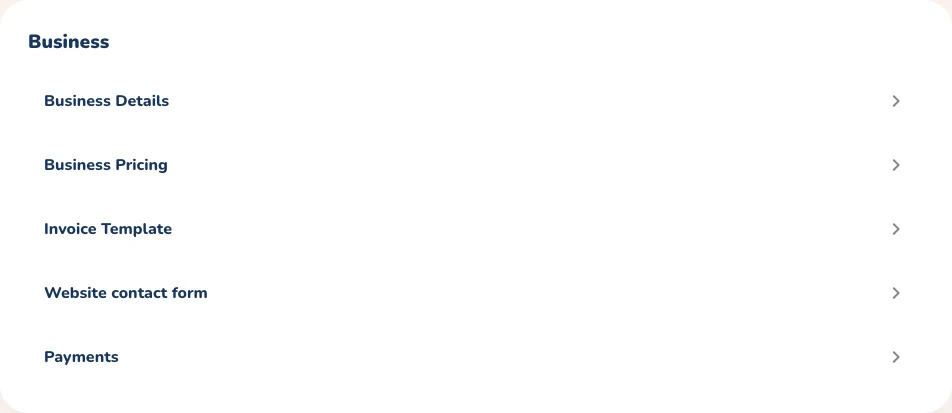
Open Settings from the menu, then choose Website contact form.
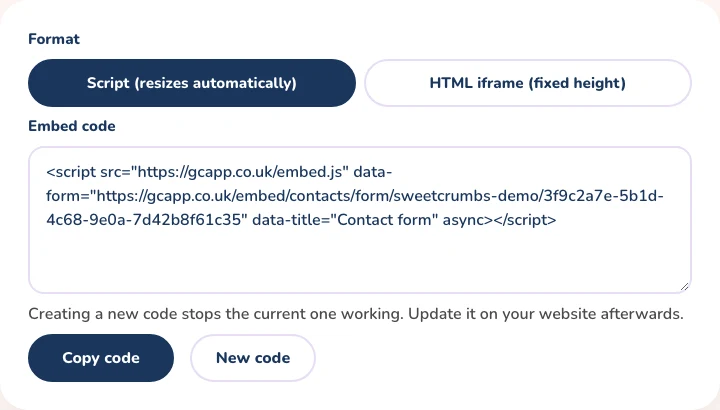
Pick a format. Script resizes automatically, suits most websites and grows or shrinks to fit the form. HTML iframe has a fixed height and works anywhere that accepts HTML.
Choose Copy code.
Open the page on your website where the form should appear, add an HTML or embed block, paste the code and publish the page.
Visit the page to check the form appears. When a visitor fills it in, they are added to your Contacts.
If you ever want to replace the code, choose New code and paste the new code into your website.
The same code works for every visitor and is never used up. When you create a new code, the old one stops working, so update your website straight away.
If your website editor removes script tags, choose the HTML iframe format instead. To send the form to one particular client, use Send Form on the Contacts page.
Open Website contact form from SettingsCopy the code and paste it into your website
Price and scale every bake with confidence
The Glowing Constellation App works out ingredient costs, scales recipes and keeps your baking business organised.