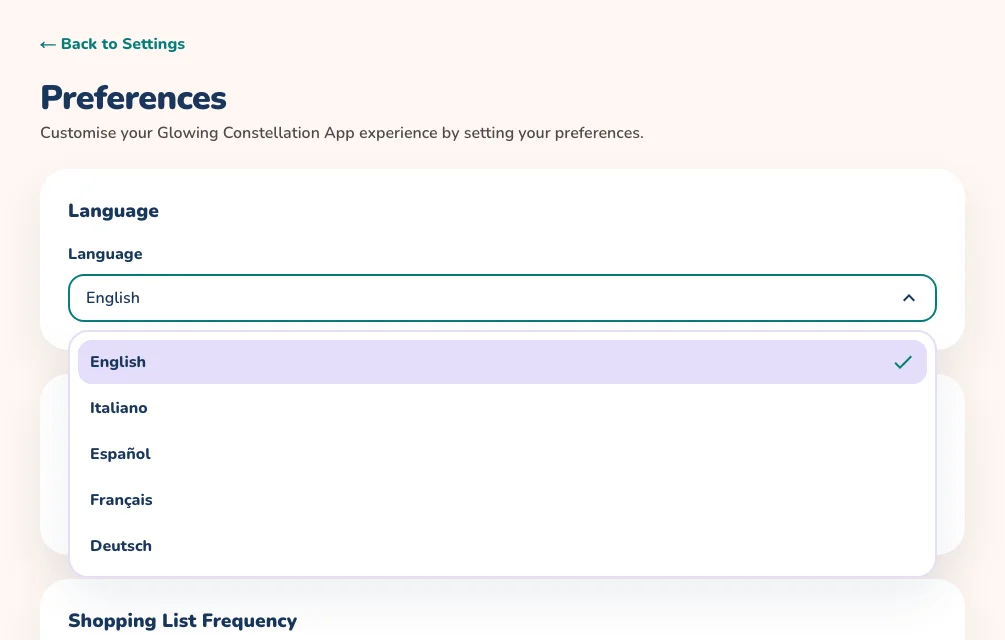
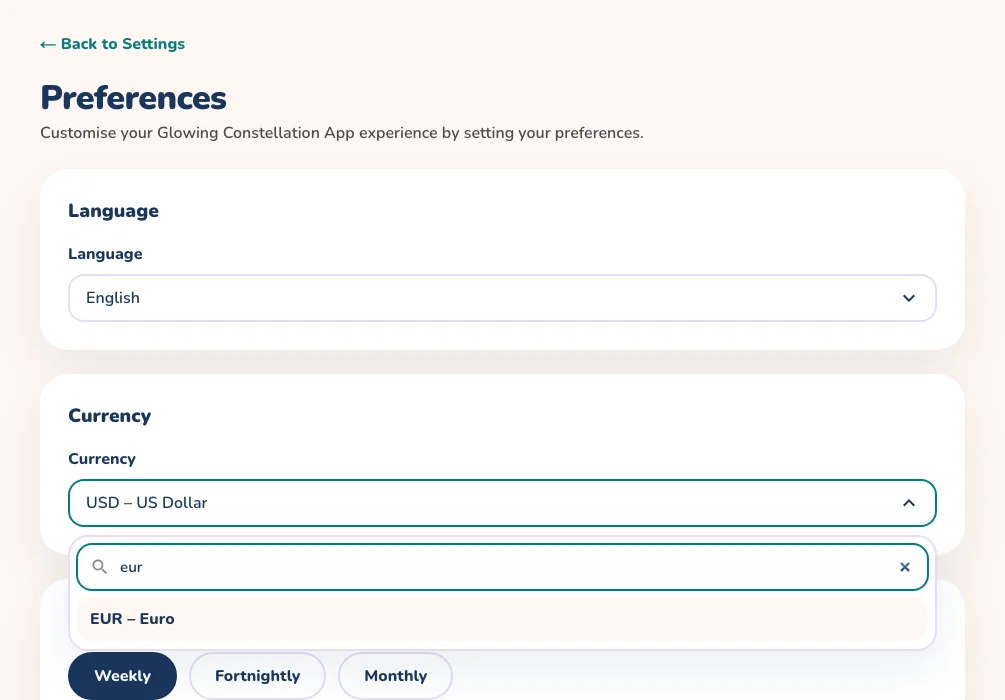
Glowing Constellation speaks English, Italiano, Español, Français and Deutsch, and can show your prices in any currency. Both choices live in Preferences and follow your account from phone to web.
On the mobile app
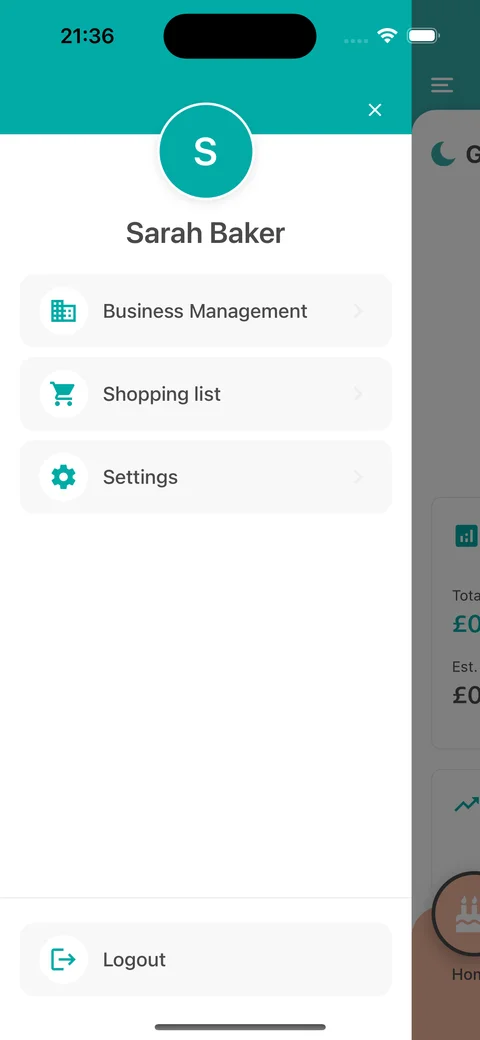
Open the menu at the top left and choose Settings.
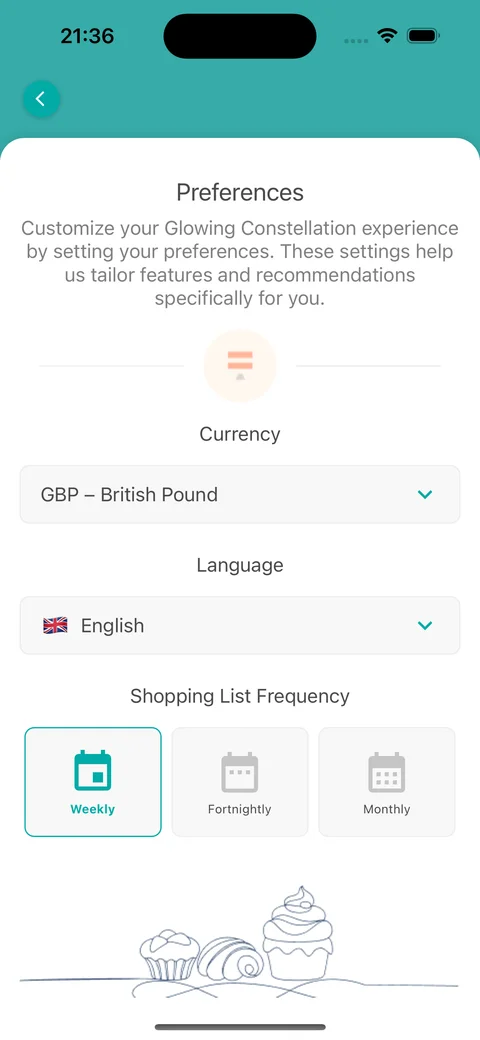
Choose Preferences.
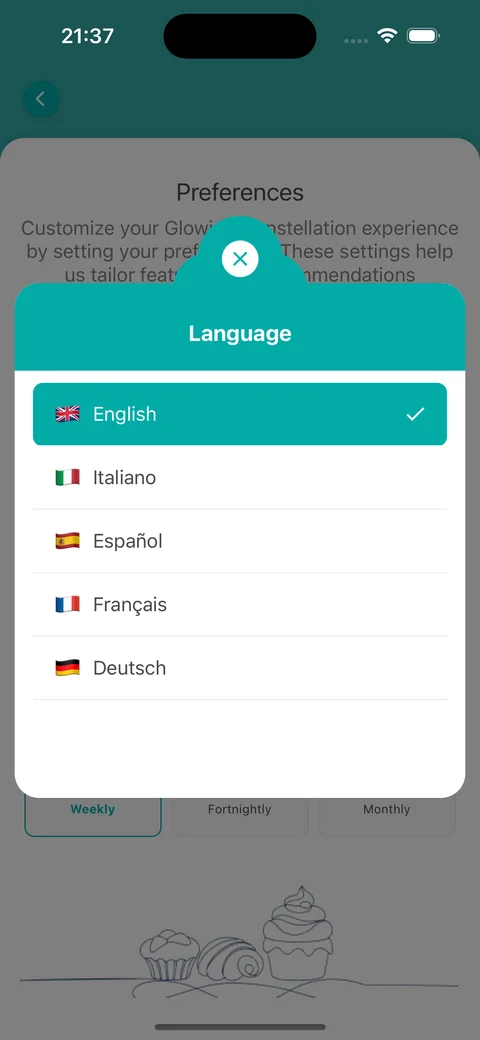
Under Language, tap the current language and choose English, Italiano, Español, Français or Deutsch. The app changes straight away.
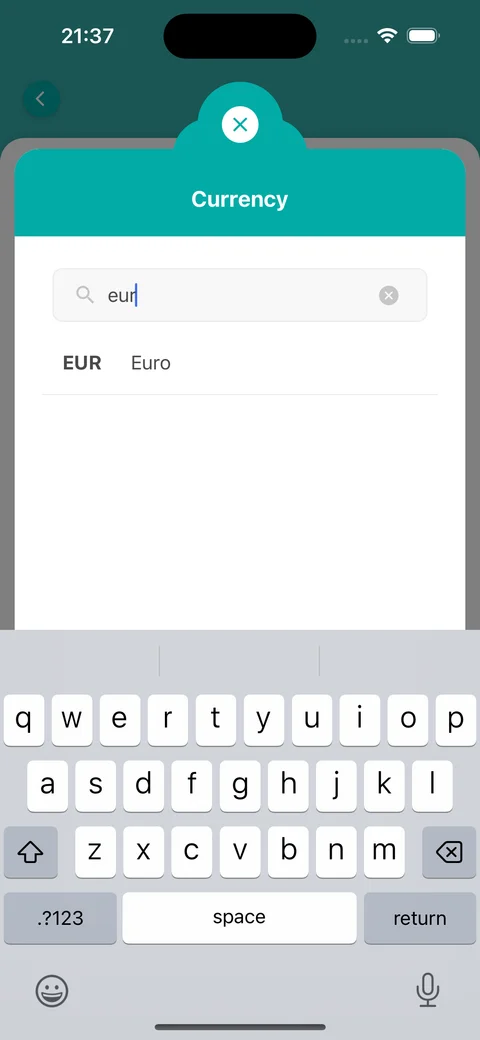
Under Currency, tap the current currency. A list of currencies opens.
Type a code or a name, such as EUR or Pound, into Search by code or name.
Tap your currency. A message confirms that it has been saved.
Your language and currency are saved to your account, so the web dashboard uses them too.
Changing the currency changes how amounts are shown. It does not convert amounts you have already entered.
Open Settings from the menuCurrency and language in PreferencesChoose your languageSearch for your currency
On the web
Open Settings from the menu, then choose Preferences.
Under Language, open the drop-down and choose English, Italiano, Español, Français or Deutsch.
The page reloads in the new language and the choice is saved to your account.
Under Currency, open the drop-down. It lists every currency by code and name.
Type a code or a name, such as EUR or Pound, into the search box to narrow the list.
Select your currency. Currency saved. appears below the drop-down.
Your language and currency are saved to your account, so the mobile app uses them too.
Changing the currency changes how amounts are shown. It does not convert amounts you have already entered.